
Home Network for Cloud and Remote Gaming in 2026: Wi-Fi 6E/7, Cables, QoS, and Why Everything Lags
Cloud gaming and remote play are unforgiving: your game can be perfectly capable, yet a noisy home network turns it into rubber-banding, mushy controls, and random drops in quality. In 2026, the typical bottlenecks are no longer “raw download speed” alone, but jitter, packet loss, Wi-Fi interference, and router behaviour under load. The goal is simple: keep latency stable, keep loss near zero, and stop your connection from spiking whenever someone starts a download or a video call.
Minimums That Actually Matter in 2026: Bandwidth, Latency, and Router Basics
Start with the non-negotiables: stable bandwidth and a sensible latency ceiling. For most cloud gaming sessions, the key is not hitting impressive peak numbers on a speed test, but maintaining enough sustained headroom so the stream does not fight with other traffic. If your household frequently runs video calls, 4K streaming, backups, or large downloads, you need extra margin so the connection stays calm rather than constantly rebalancing.
Latency is the part most people underestimate. A connection that sits at 15–25 ms but occasionally jumps to 70–120 ms will feel worse than a steady 35 ms line, because your inputs land inconsistently. That instability is usually jitter (variation in delay) and it often comes with small bursts of packet loss. In cloud gaming, those two issues show up as sudden stutter, blurry image recovery, and delayed control response even when the picture looks “fine” most of the time.
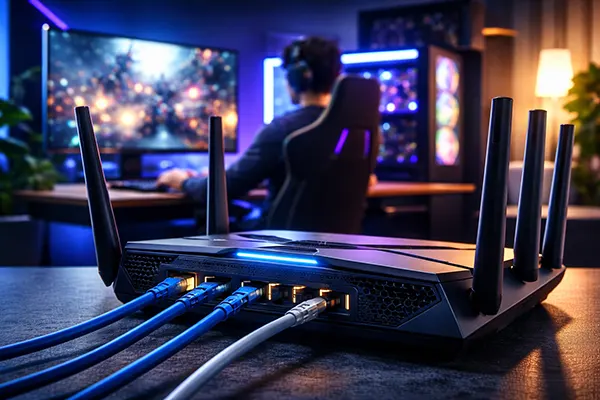
Router basics in 2026: you want a device that can handle many clients without choking, offers sensible traffic management, and supports modern Wi-Fi bands. Wi-Fi 6E and Wi-Fi 7 matter because they improve how networks behave under crowding and interference, not just maximum throughput. The practical win is fewer spikes during busy moments, provided the router is placed well and configured to avoid unnecessary congestion.
Room vs Flat vs House: Realistic Setups and Where They Break
One room: keep it simple. If your gaming screen is near the router, your biggest enemies are placement and local interference. Avoid hiding the router behind a TV, inside a cabinet, or at floor level. A higher, open position with clear space around it often reduces retransmissions, which is a quiet but common source of micro-stutter and latency wobble.
Typical flat: walls turn “strong signal” into unstable latency. Two solid walls can cause variable performance even when the indicator shows decent strength, because the signal may be bouncing and competing with neighbouring networks. In many flats, a centrally placed router with sensible channel settings beats a cheap mesh kit located at the edge. If you do use mesh, the placement of nodes and the quality of the backhaul link usually determines success.
House: plan for distance and multiple floors. The most reliable approach is to treat Wi-Fi as the access layer and use wiring to stabilise the core. You do not need cables everywhere, but running Ethernet to a key room (or to the main mesh node) often removes the worst spikes and makes the whole setup easier to diagnose. When the internal network is stable, any remaining issues are more likely to be outside your home.
Ethernet vs Wi-Fi 6E/7: When a Cable Wins, and When It Doesn’t
Ethernet is still the boring winner for consistency. It avoids neighbour interference, reduces packet loss risk, and keeps latency predictable—exactly what streaming games need. If your main complaint is “random spikes”, a temporary cable test is the fastest way to confirm whether the problem is Wi-Fi-related or coming from the wider internet path.
Wi-Fi can be excellent in 2026, but only when the conditions are designed for it. Wi-Fi 6E’s practical advantage is access to the cleaner 6 GHz band in supported regions, which can reduce congestion in dense buildings. Wi-Fi 7 adds efficiency features that help when many devices are active at once. However, modern Wi-Fi still depends heavily on channel choice, placement, and the way the router handles queues under load.
When Ethernet will not magically solve everything: if the bottleneck is outside your home—ISP congestion, a busy local node, or poor routing to the cloud service—wired networking can improve stability slightly but won’t remove delays entirely. In those cases, your best improvements often come from reducing peak-time contention, selecting a nearer service region when available, or improving how your router manages queueing so local load does not amplify the external problem.
Settings That Save Streams: Band Choice, Channel Width, and Traffic Priority
Band choice should be about stability. If you have devices that support 6 GHz and your router supports it, that band can reduce neighbour interference in many environments. Otherwise, 5 GHz is usually the best balance of speed and reliability for gaming streams. Keep 2.4 GHz for low-bandwidth devices and longer-range needs; it is more crowded and more vulnerable to interference, which often translates into jitter.
Channel width is where many setups go wrong. Wider channels can increase peak throughput, but they are more sensitive to interference and overlapping networks. In busy areas, a narrower channel that stays clean can produce better real-world gaming performance than an ultra-wide setting that constantly retries packets. The sign you chose correctly is fewer quality drops and smoother input response during household activity, not a higher headline speed test result.
Traffic priority is the real life-saver. Look for QoS options that can prioritise gaming or streaming devices and reduce latency spikes under load. If your router supports smart queue management (often labelled SQM), it can be particularly effective at preventing “everything lags” moments when someone uploads a video, syncs photos, or starts a large download. The aim is not to block others, but to keep queues short so your stream remains responsive.
How to Diagnose Jitter and Packet Loss: A Practical, Step-by-Step Playbook
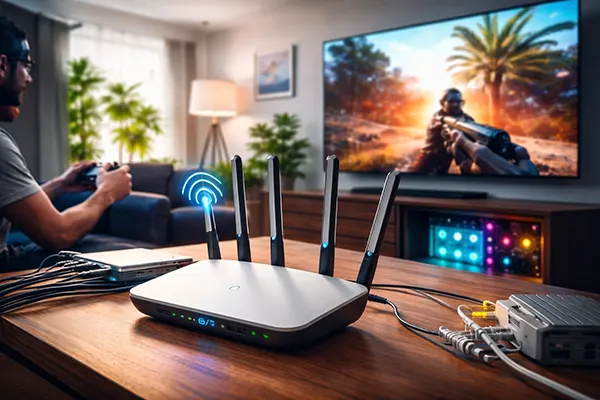
First, separate Wi-Fi issues from internet path issues. Do a simple A/B test: play the same scenario on Wi-Fi and then on Ethernet, even if it means temporarily running a long cable across a hallway. If Ethernet becomes stable, your problem is inside the home (signal, interference, channel choice, or router queueing). If both are unstable, you are likely dealing with ISP conditions or routing to the service.
Second, measure stability over time, not just one-off results. Short speed tests mostly validate bandwidth and can miss the real culprit: variable delay under load. A practical approach is to test while the household uses the network normally. If performance collapses whenever someone uploads or starts a download, you’re likely seeing bufferbloat—latency inflating because queues fill up. If you see brief dropouts, you may be dealing with packet loss, which can come from weak Wi-Fi, interference, or an overloaded router.
Third, identify “competition” on your network. Game streaming behaves best when it has steady headroom. The common culprits are automatic cloud backups, console updates, NAS synchronisation, and high-bitrate video streaming. Even if your line is fast, these bursts can create queues that make inputs feel delayed. Pinpointing which device causes the spikes is often the fastest route to a permanent fix.
Fixes in the Right Order: From Quick Wins to Proper Solutions
Quick wins (15 minutes): move the router into the open and higher up, ensure the gaming device is on 5 GHz or 6 GHz, and pause heavy uploads/downloads for a test session. Retest in a real game rather than relying only on a speed test. If the stutter disappears, you have confirmed that the issue is local contention or radio conditions and you can focus your fixes where they matter.
Next level (60 minutes): adjust channels, reduce channel width in crowded areas, and enable QoS or SQM with sensible limits. The key trick is to set the router’s managed bandwidth slightly below your real line speed so the router controls queues instead of your modem or the ISP edge. Done well, this keeps latency stable even when other devices are active, which is exactly what cloud gaming needs.
Proper solution (an afternoon): add wiring where it counts. One Ethernet run to the main gaming screen or to a mesh node for wired backhaul can eliminate the worst spikes permanently. If cabling is difficult, consider alternatives that use existing home wiring where appropriate, but treat them as solutions to test rather than guarantees. Once your internal network is stable, any remaining issues are clearer to diagnose and far easier to discuss with an ISP using concrete evidence.
Popular articles
-
 Eversoul — Gacha Mechanics and Team Develo...
Eversoul stands out among modern mobile RPGs …
-
 Nintendo Switch 2 mouse controls: can Joy-...
The upcoming Nintendo Switch 2 introduces a …
-
 Brawl Stars: How to Rank Up Faster by Choo...
Ranking up in Brawl Stars in 2026 …